



Boost cloud security by combining Google SCC with co-managed IT for real-time threat detection and compliance.

August 18, 2025
.avif)
.avif)
.avif)
For years, Apple has built a reputation as a fortress for personal data, standing strong against the rising tide of cyber threats and privacy concerns.
With nearly 1 in 4 smartphone users at risk of cyberattacks, Apple’s commitment to security has never been more crucial.
From advanced encryption to cutting-edge privacy tools, the Apple ecosystem has continuously evolved to offer users the peace of mind they deserve in an increasingly interconnected world.
With features like anonymized Mail, robust two-factor authentication, and proactive privacy settings, Apple Security provides unmatched protection against unauthorized access and digital intrusions.
In this blog, we’ll explore some of the standout Apple Security features that safeguard your personal information and ensure a seamless, secure experience across all your devices. Let's dive in!
Table of Contents
Understanding Apple's Privacy Settings: What They Really Mean Protecting Your Email from Unwanted Tracking with Apple Mail Privacy Protection What Happens When You Turn on 2FA on Your iPhone? How Apple’s Platform Handles Data Encryption for Maximum Security Apple Payment Fraud: How to Spot Fake Invoices and Scams Secure Your Digital Life with Apple Security Features
Understanding Apple's Privacy Settings: What They Really Mean
Here's an overview of some key privacy and security features on Apple and how you can make the most of them:
Apple Intelligence
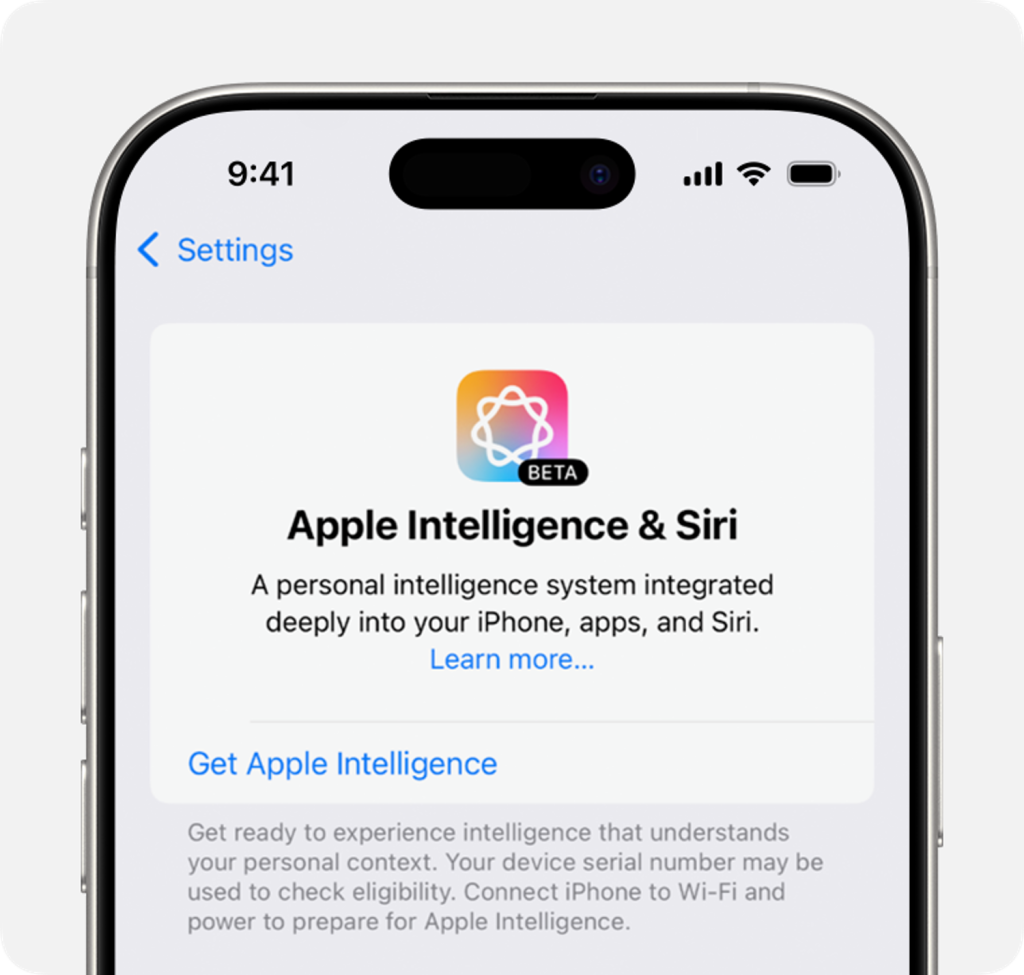
Apple Intelligence revolutionizes privacy by ensuring your data remains untouchable—even by Apple itself. This innovative approach processes most of your requests directly on your iPhone, iPad, or Mac, keeping your information where it belongs: in your hands.
For more intricate tasks requiring advanced computational power, you have Private Cloud Compute, extending your device’s privacy features into the cloud while using encryption to protect your data.
Tips for Optimizing Apple Intelligence Privacy and Security Settings: Review access by third-party apps regularly and restrict permissions to avoid unnecessary access to sensitive data Opt for apps and features that prioritize on-device processing rather than Private Cloud Compute
Safari

Safari sets the gold standard for privacy in web browsing, shielding you from cross-site tracking and minimizing the data shared with third parties.
With Private Browsing, your online activities stay personal, as Safari avoids saving your browsing history, search inputs, or form details. Known trackers are blocked entirely, while advanced protections prevent fingerprinting or invasive link tracking. Social widgets are also restricted, requiring explicit permission before accessing your identity.
Tips for Optimizing Safari Privacy and Security Settings: Enable Private Browsing mode while exploring sensitive websites Review Safari’s Privacy Report periodically to block persistent trackers Disable all cookies to gain greater control over your browsing data
Maps
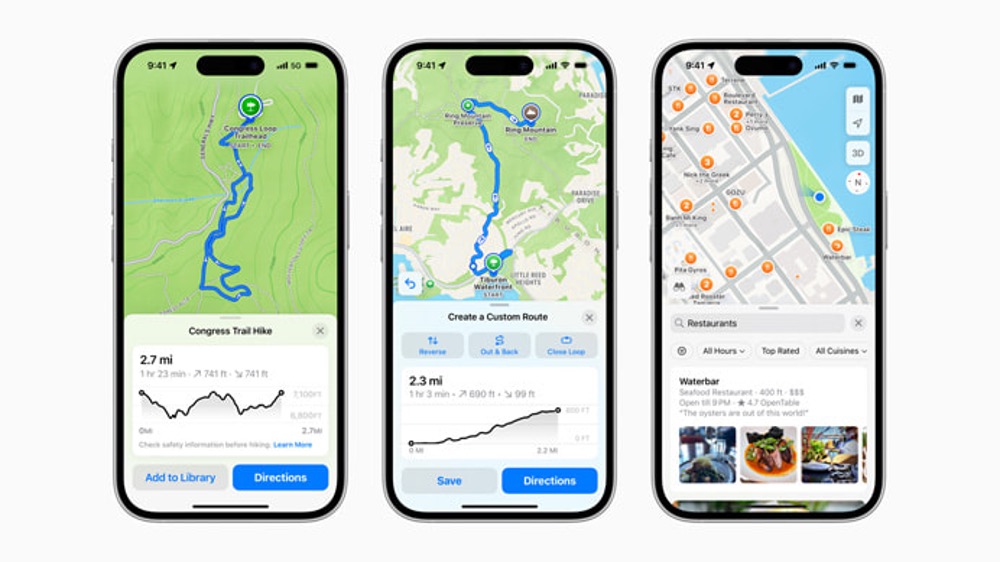
Maps transform navigation into a privacy-first experience. Any data shared with Apple servers is tied to random identifiers, resetting frequently to prevent long-term tracking or profiling.
Advanced encryption ensures that collections, Significant Locations, and ETA-sharing are protected end-to-end. For an added layer of anonymity, Maps applies "fuzzing" to obscure your exact location during searches, converting precise coordinates into a less specific area within 24 hours.
Tips for Optimizing Maps Privacy and Security Settings: Disable location tracking for non-essential apps Share ETA data only with trusted contacts to make real-time location data private Disable “Significant Locations” to turn off frequent locations
Photos
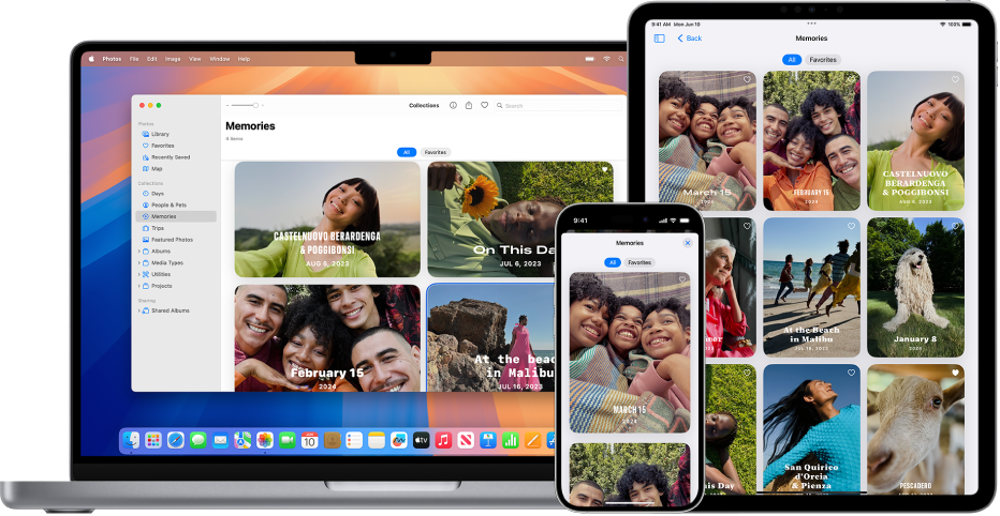
Face recognition and scene and object detection are handled entirely on your device, not in the cloud. This ensures Apple provides advanced features like Memories and Sharing Suggestions without accessing your photos, keeping your library private.
It allows you to always be in control of what apps can access through permissions, and your iCloud Photos remain encrypted if backed up, ensuring a seamless yet secure experience.
Tips for Optimizing Photos Privacy and Security Settings: Disable iCloud Photo Sharing to keep your photo library local to the device Use Face ID or Touch ID to secure access to your photo library
iCloud and iCloud+
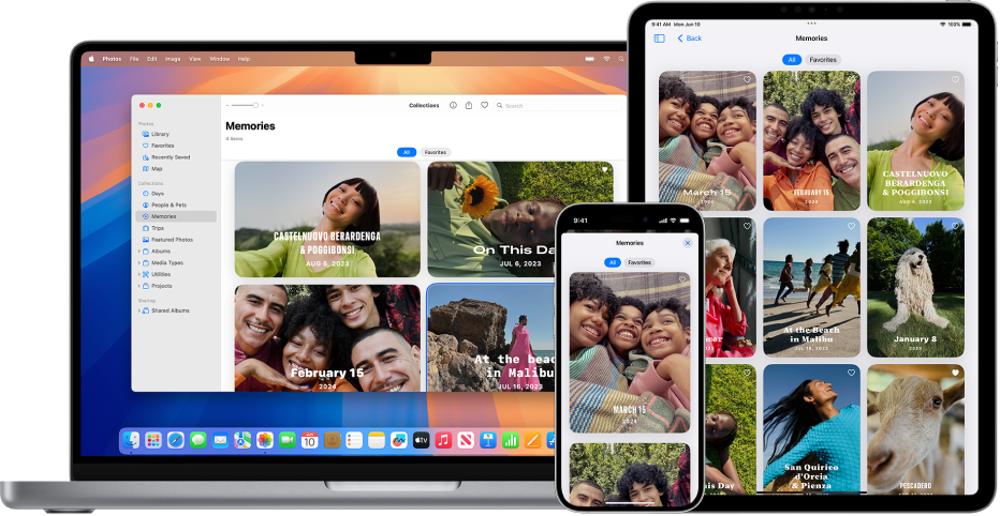
iCloud safeguards your data—photos, contacts, and notes—using robust encryption protocols, protecting it in transit and at rest. Third-party data centers may assist in processing, but only Apple’s secure servers manage encryption keys during necessary operations.
Advanced Data Protection offers end-to-end encryption, ensuring only trusted devices can decrypt sensitive data. Features like iCloud Sharing and CloudKit preserve privacy by limiting developer access to a unique identifier unless permission is granted.
iCloud+ further enhances privacy with tools like Hide My Email, which creates random email addresses for anonymity, and iCloud Private Relay, which cloaks browsing activity through dual relays operated by separate entities.
Tips for Optimizing iCloud and iCloud+ Privacy and Security Settings: Enable Advanced Data Protection to safeguard your iCloud data using end-to-end encryption Set up two-factor authentication for your Apple ID to reinforce security policies even if your password is compromised Review app permissions periodically to prevent unauthorized access
FaceTime, Messages, and More
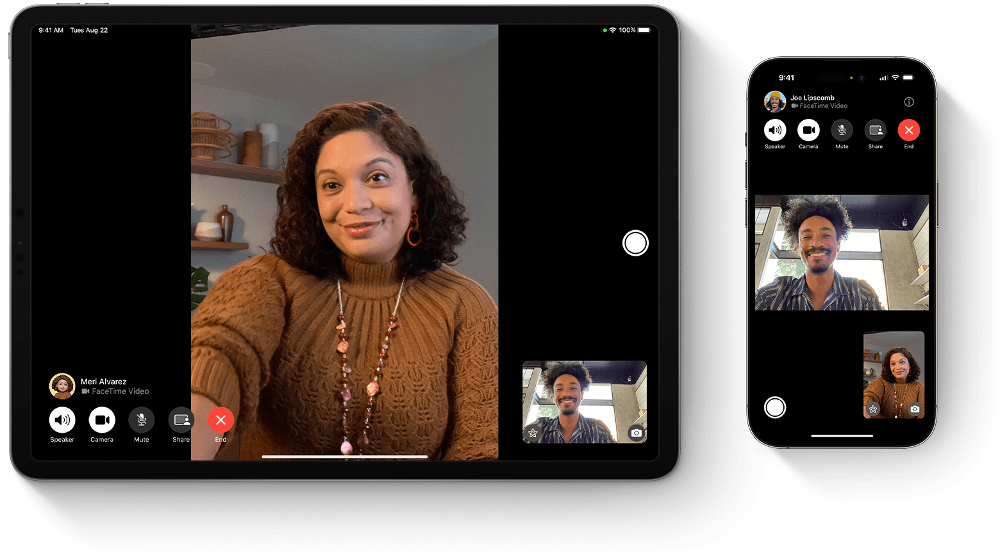
Your iMessage and FaceTime conversations are encrypted end-to-end, meaning no one—not even Apple—can access them during transit. Features like NameDrop, Mail Privacy Protection, and Link Tracking Protection further enhance your privacy.
SharePlay and iCloud Backup ensure convenience, while FaceTime remains secure even for calls shared with non-Apple users. All communication features prioritize your data’s confidentiality without sacrificing usability.
Tips for Optimizing FaceTime and Messages Privacy and Security Settings: Enable Two-Factor Authentication (2FA) to add an extra layer of security Use NameDrop cautiously, and only share your contact information with trusted devices Enable Mail Privacy Protection to block senders from tracking your email activity
Siri
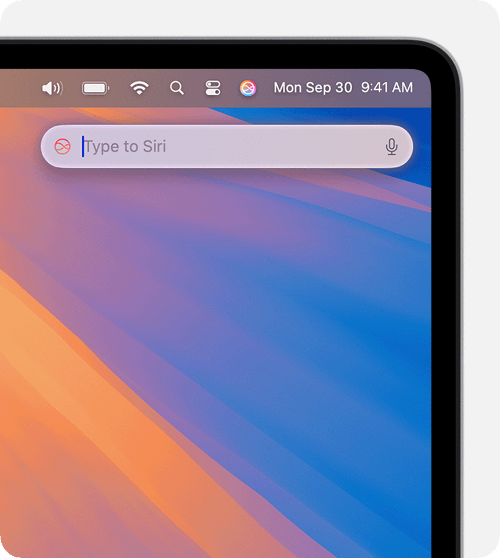
Siri prioritizes your privacy by performing most of its learning offline on your Apple device. Searches and requests are tied to a random identifier, ensuring they are not connected to your Apple Account. For requests that require cloud processing, data is handled securely using Private Cloud Compute and is never stored or accessible to Apple.
Tips for Optimizing Siri Privacy and Security Settings: Disable Siri Suggestions for sensitive apps that handle private information Delete Siri history from time to time Turn off Siri for locked screens to minimize unauthorized access
Wallet
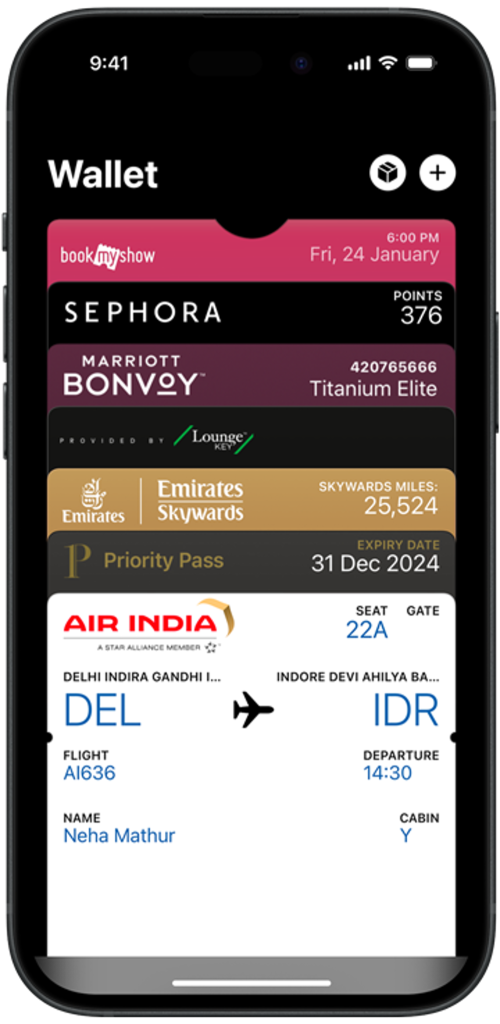
Wallet safeguards your boarding passes, tickets, and other items by storing them in the Secure Element of your device. This ensures that your sensitive information remains secure and private, offering both convenience and peace of mind.
Tips for Optimizing Wallet Privacy and Security Settings: Set up Face ID or Touch ID to secure access to your Apple Wallet Remove expired and unused passes to minimize the storage of sensitive data Set up Transaction Notifications to get alerts on unauthorized activity
Protecting Your Email from Unwanted Tracking with Apple Mail Privacy Protection
Imagine this: you get an email. You open, read, and close it. But somehow, this email leaves a backdoor open, granting access to your online activity. As shocking as this may seem, this is the reality of 50% of emails!
Such emails hide sneaky little trackers—invisible bits of code that spy on you. They tell senders when you open an email, if you forward it, and even where you are—all without your say.
Apple's Protect Mail Activity stops this cold. There is no peeking, no tracking. Instead of loading images when you open an email, the Mail app grabs everything in the background—far from prying eyes. Not even Apple gets a look.
Here's how it works: Apple uses a clever double-layered relay system. One relay sees your IP address but never the email content, while the second relay handles the email but never your IP. This ensures that neither the sender nor Apple can link your identity to your actions.
The result? Senders are in the dark. They can't track your behavior or piece together a profile of your habits. With Mail Privacy Protection, your inbox remains fully under your control, free from unwanted surveillance.
How to Turn On Mail Privacy Protection On Mac
Once enabled, your IP address stays masked. Remote email content is stealthily downloaded in the background well before you even see the message.
How to Turn On Mail Privacy Protection On iPhone and iPad
For extra privacy, iCloud+ subscribers can use Hide My Email. This feature spins up random, unique email addresses that forward messages to your real account. Use them to keep your personal email private when filling out forms or subscribing to newsletters.
Benefits of Using Mail Privacy Protection
Mail Privacy Protection offers the following benefits to Apple device users:
What Happens When You Turn on 2FA on Your iPhone?
Two-factor authentication (2FA) adds an extra layer of protection to your Apple Account, ensuring only you can access it—even if someone cracks your password.
When 2FA is on, you’ll need your password and a six-digit code to sign in on a new device or through the web for the first time. This code appears automatically on your trusted devices. Some Apple services, like Apple Pay and Sign in with Apple, depend on 2FA for higher protection.
Steps for Turning on 2FA on iPhone
Here’s a step-by-step guide on how you can activate 2FA and manage your trusted devices and phone numbers:
Enabling 2FA on Your iPhone
Adding a Trusted Device
Managing Trusted Phone Numbers
Add a Number:
Remove a Number:
Viewing or Removing Trusted Devices
Effect of Turning on 2FA on Your iPhone
Here’s what you can expect when you turn on two-factor authentication (2FA) on your iPhone:
Benefits of Enabling 2FA on iPhone
Turning on 2FA grants the following benefits:
How Apple’s Platform Handles Data Encryption for Maximum Security
Apple’s approach to encryption weaves together advanced technologies to secure user data across devices.
Features like Secure Enclave, FileVault, and end-to-end encryption work in harmony to shield sensitive information, even when other security layers falter, such as in cases of device loss or untrusted code execution.
Secure Enclave
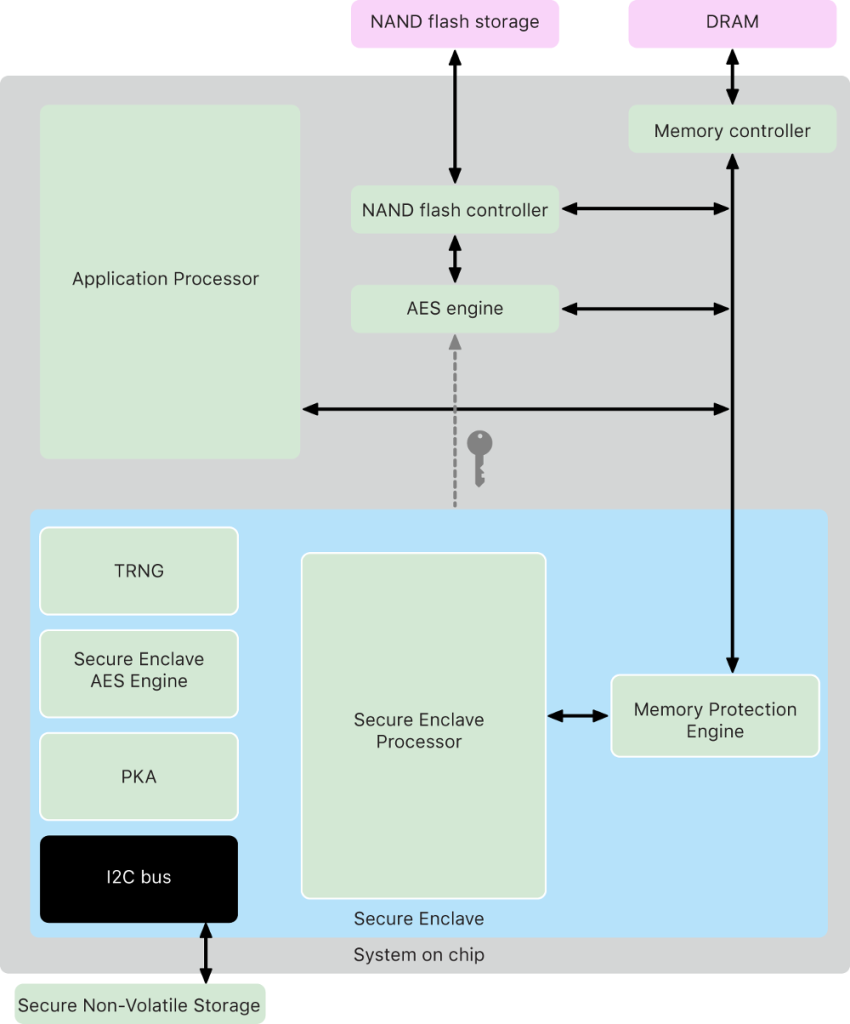
The Secure Enclave is a fortress for your data, embedded within Apple’s system on chips (SoCs). It operates independently of the main processor, adding an impenetrable layer of security. Designed to guard sensitive data, it remains secure even if the primary kernel is compromised.
With a dedicated AES engine for speedy encryption tasks and protected memory, the Secure Enclave ensures encryption keys stay out of reach of the kernel and CPU. It’s a hardware feature in most modern Apple devices, from the iPhone 5s onward to MacOS computers with Apple silicon or T1/T2 chips.
FileVault and Data Protection
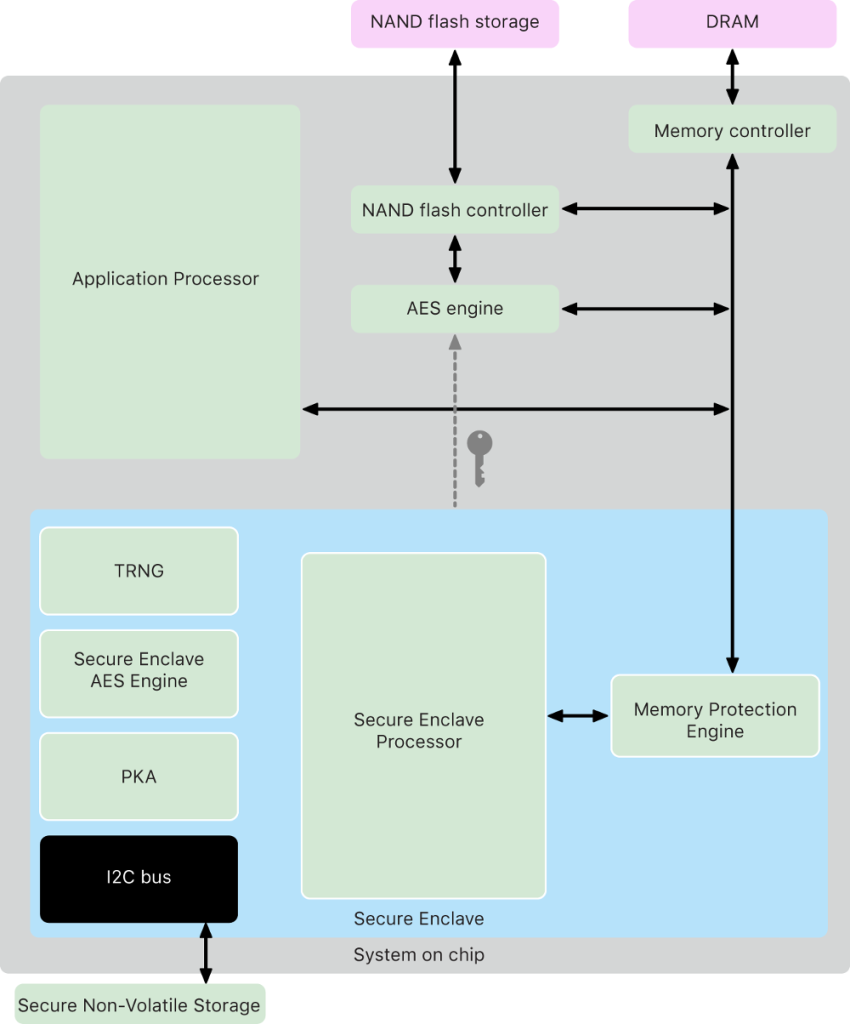
Apple employs FileVault for Intel-based Macs, which encrypts the entire disk volume. Macs with Apple silicon blend FileVault’s capabilities with Data Protection, a methodology borrowed from iOS devices.
This hybrid model leverages Secure Enclave for key management, ensuring long-term keys are shielded. On iPhones and iPads, Data Protection encrypts files individually, creating an additional hurdle for unauthorized access.
System-Level Safeguards
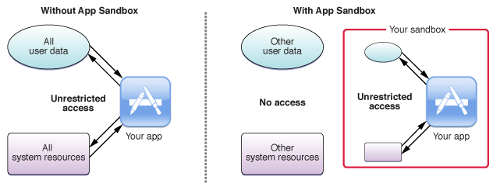
Apple’s operating systems enforce strict controls. Sandboxing limits app access to specific data, while the Data Vault restricts app data visibility to external requests. These mechanisms block unauthorized intrusions and reinforce security boundaries.
By integrating encryption at every level, from hardware to software, Apple ensures robust protection for personal and corporate information. This approach not only secures user data but also empowers IT administrators with tools for remote wipe and enhanced data integrity.
Apple Payment Fraud: How to Spot Fake Invoices and Scams
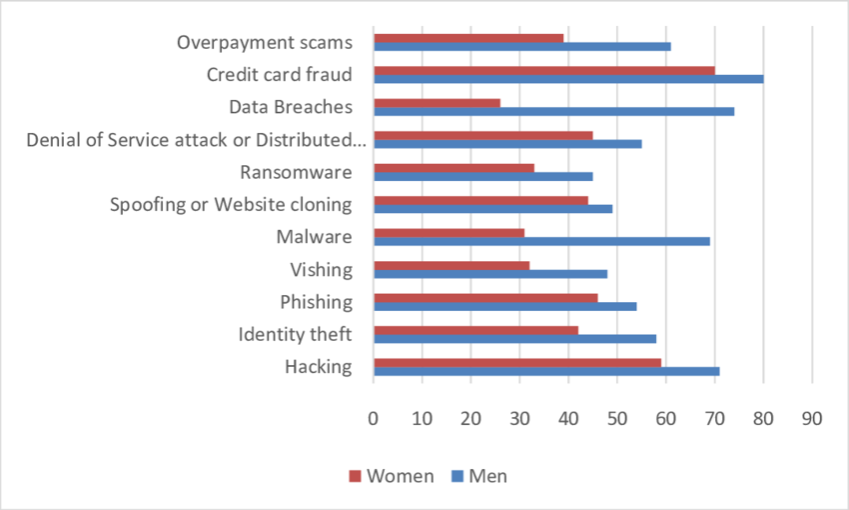
Here’s a list of some of the common Apple Payment frauds and how you can protect yourself from them:
1. Customer Support Scams
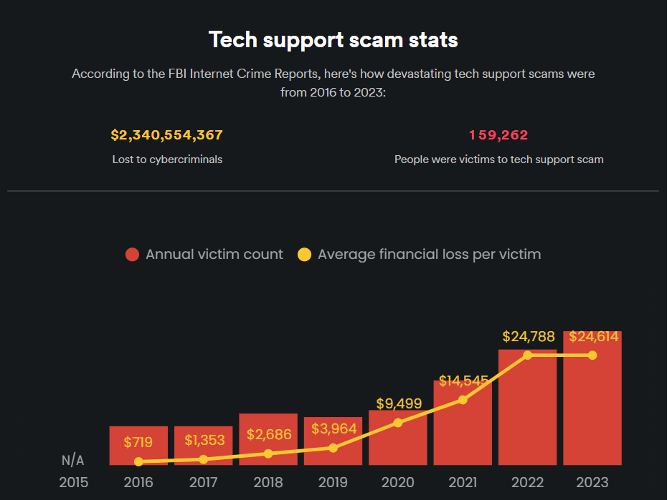
Customer support scams occur when fraudsters impersonate Apple’s support team. They might demand money under the guise of “testing” Apple Pay or request sensitive details to access your account. Common tactics include asking for Apple Cash payments, login credentials, screen-sharing, or clicking dubious links.
How to avoid it: Be wary of unsolicited messages claiming to be from Apple. Never click suspicious links, download unverified apps, or share sensitive information. Verify by contacting Apple support through official channels.
2. Two-Factor Authentication (2FA) Scams
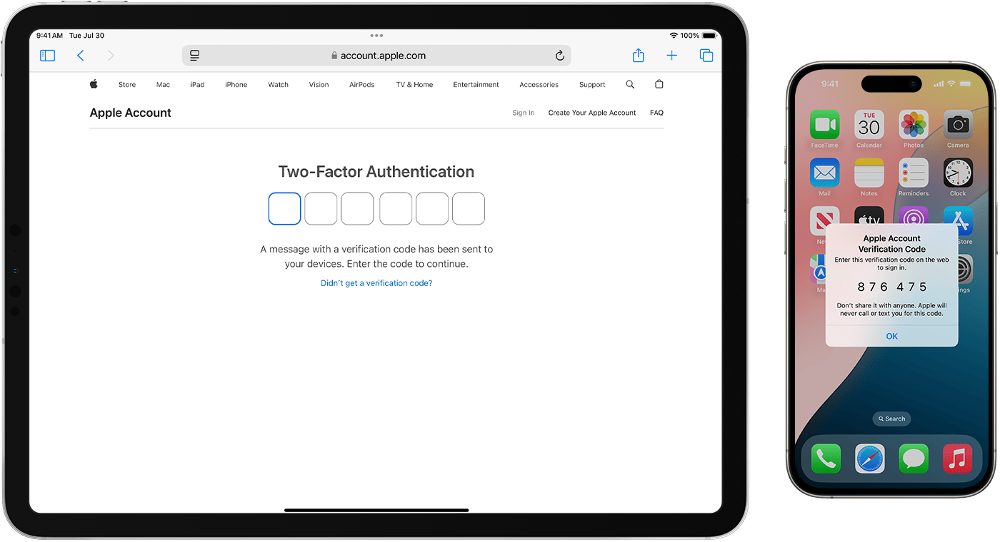
2FA scams aim to steal verification codes sent to your trusted numbers of devices. If you’re targeted, scammers may already have your password. Bots or fake websites generate phony requests to trick you into sharing your code. In some cases, attackers may use a SIM swap to intercept codes directly.
How to avoid it: Use trusted authentication apps and never share 2FA codes. Legitimate agents won’t request these details. Protect your phone number from unauthorized changes by setting up carrier safeguards.
3. Gift Card Scams
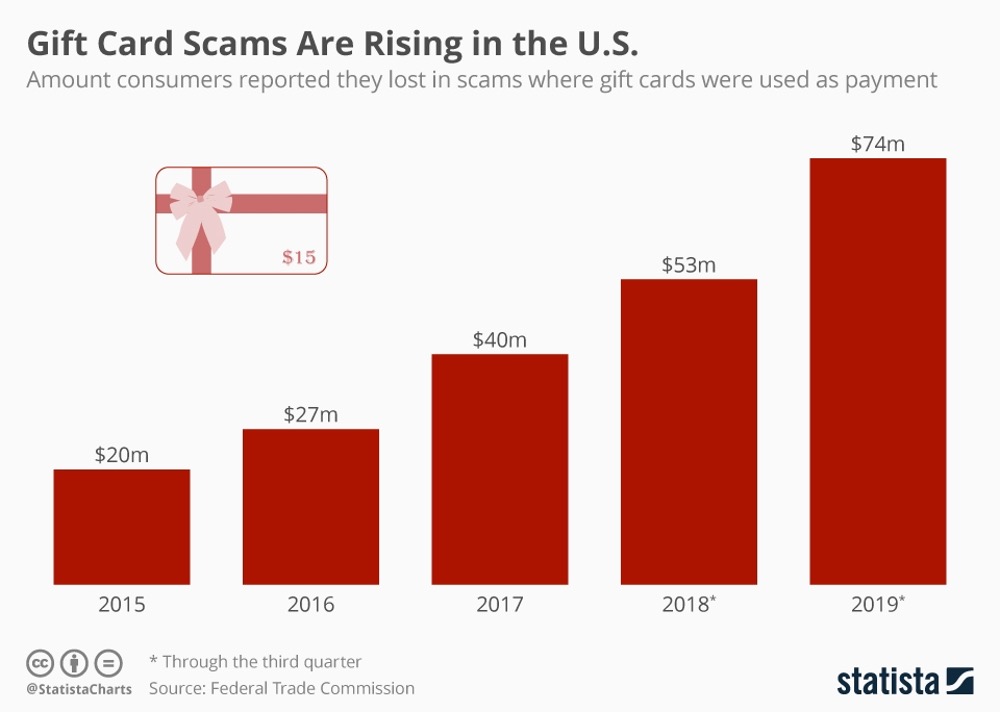
Fraudsters push victims to purchase and pay using gift cards. Note that gift cards are virtually untraceable. They may impersonate government agencies, tech support, friends in distress, or utility companies. In other cases, they promise fake prizes, demanding fees paid with gift cards. Once sent, these funds are nearly impossible to recover.
How to avoid it: Never share gift card details or use them as a payment method for unknown parties. Treat any request for gift cards as a scam warning.
4. Stolen Credit Card Scams
Scammers send money using stolen credit cards and then urgently ask for a refund through Apple Pay or Apple Cash. When the transaction is reversed by the cardholder's bank, you're left without the funds you returned. This trick is common in overpayment scams.
How to avoid it: Never refund unknown individuals directly through Apple Pay. Confirm with your bank that the original transaction has cleared before issuing any refund.
5. Security Breaches
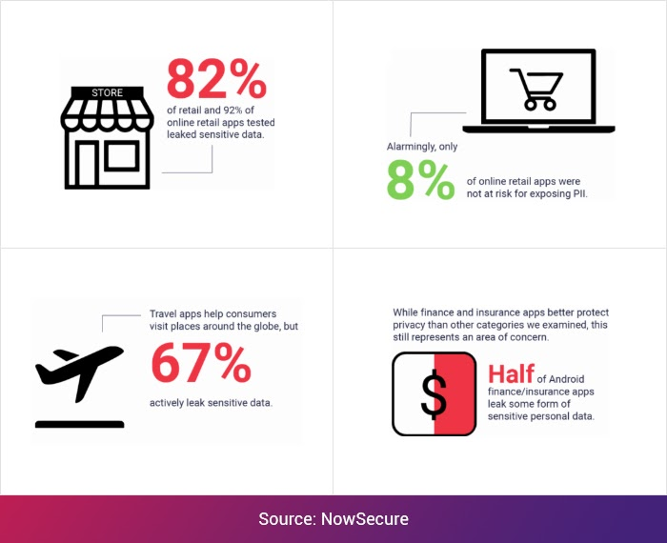
In a study commissioned by Apple, nearly 2.6B personal records were found to be compromised by data breaches! Weak security practices at businesses can expose sensitive data like your Apple Pay transaction history. Hackers exploit vulnerabilities to install malware or steal information during data breaches.
How to avoid it: Share personal data sparingly with businesses. Consider identity theft protection services for monitoring and restoration in case of fraud.
6. Unsecured Wi-Fi Scams
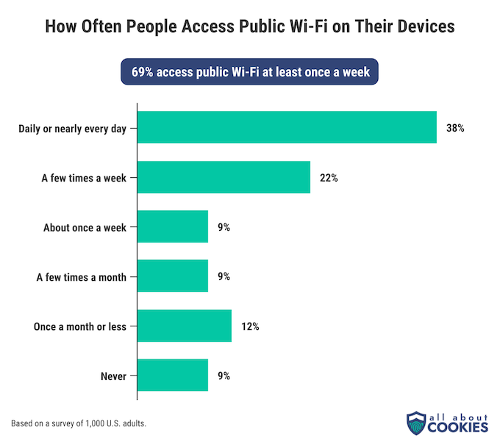
Public Wi-Fi networks lacking encryption can expose your Apple Pay credentials to hackers. Without security measures, attackers intercept sensitive data to conduct fraudulent transactions or initiate identity theft.
How to avoid it: Avoid using Apple Pay on public Wi-Fi. If necessary, secure your connection with a VPN to encrypt transmitted data.
7. Fraudulent Business Scams
Fake businesses posing as Apple affiliates lure victims with offers that are too good to be true. Fraudsters may request personal details like your Social Security number, Apple ID, or banking credentials. Falling for these schemes can result in account compromises or financial loss.
How to avoid it: Verify offers through official websites and avoid unsolicited communications. Never share sensitive details without thorough validation.
8. Overpayment Scams
Overpayment scams involve fraudsters sending fake Apple Pay payment notifications to sellers. Believing the payment is legitimate, victims are tricked into refunding money through alternate methods. This scam often appears on platforms like Craigslist and Facebook Marketplace.
How to avoid it: Confirm payment by checking your bank account directly. Only refund the original transaction after ensuring it has cleared through your bank.
Apple Pay Scams Red Flags Stay wary of the following warning signs as these may indicate chances of a scam: Unsolicited messages request sensitive details or urgent action Messages include suspicious links or attachments The sender’s email or phone number doesn’t match Apple’s official information You receive unexpected payments or notifications Avoid engaging with suspicious messages. Report incidents to Apple and ensure your account security by not clicking on unfamiliar links.
Secure Your Digital Life with Apple Security Features
Apple's commitment to security and privacy remains at the forefront of its user experience, constantly evolving to protect your data in an increasingly connected world.
With features like Mail Privacy Protection, two-factor authentication, and device-level encryption, Apple ensures that your digital life stays secure, private, and entirely under your control.
With a Google-certified partner like Point, you can focus on growth while we handle the complexities of your technology. We simplify your IT management and ensure your networks are secure, your systems scale effortlessly, and your business stays agile.
Leave the technical heavy lifting to us so you can focus on what truly matters—driving growth and reaching your goals. Reach out to us today!
FAQs
How do I activate Apple's Mail Privacy Protection?
To activate Mail Privacy Protection, go to your device's settings. On an iPhone or iPad, go to Settings > Mail > Privacy Protection, then toggle on Protect Mail Activity.
Go to Mail > Settings > Privacy on Mac, and tick Protect Mail Activity. Once enabled, this feature ensures your IP address is masked, and email content is securely loaded in the background.
Does Apple's Two-Factor Authentication (2FA) apply to all my devices?
Yes, once you enable Two-Factor Authentication (2FA), it applies to all devices linked to your Apple ID. When signing in from a new device, you'll need to verify your identity with a six-digit code sent to your trusted devices, adding a layer of protection to your account.
How does Apple's encryption ensure my data stays secure?
Apple protects data across devices using a combination of Secure Enclave, FileVault, and end-to-end encryption. These advanced technologies work together to ensure that sensitive information remains encrypted and secure, even if your device is lost or compromised.
What is Apple Intelligence, and how does it protect my data?
Apple Intelligence processes most of your data directly on your device, ensuring your personal information stays private. For more complex tasks, it uses Private Cloud Compute with encryption, meaning your data is never accessible to Apple itself, giving you full control over your privacy.